Wireless Multicast with Cisco WLC
Recently the question of multicast over Wi-Fi came up again at the office, so it was time to set it up and see what happens. All the configuration and test results are documented below.
The basic lab setup.

First, we need to remember that sending multicast to the AP requires multicast communication between WLC and AP. This means the LAN needs to be multicast enabled, otherwise this will just not work. This is less of an issue in a small lab such as this as everything can be on the same VLAN, but on larger networks this is unlikely to be the case.
Once the LAN is multicast ready we can move on to WLC configuration, and we see that there is actually very little of it.
Step 1: Configure the multicast mode and specify the multicast group address.
There are two multicast modes available; multicast-unicast (which is legacy and defeats the point) and multicast-multicast. In this case we are using a Cisco 2500 series controller and multicast-multicast is the only available mode. The group address is the multicast address the WLC will use to send multicast traffic. Standard best practises apply when selecting which group address to use. The address should not be in use elsewhere on the network, should conform to the appropriate RFCs (typically by using an address from the 239.x.x.x range), and should not overlap with other addresses. For this step we use the command:
config network multicast mode multicast 239.1.2.3
Step 2: Enable multicast globally.
Does what it says, we use the command:
config network multicast global enable
Step 3: Enable IGMP Snooping
This is optional, but we will enable it with the default timers using the command:
config network multicast igmp snooping enable
That is all there really is to basic multicast configuration on the WLC, now we test.
VLC player is our stream source, streaming a H264 video to the address 239.13.13.13.
Handy tip, to open an UDP multicast stream on the receiving VLC player, point it to udp://@x.x.x.x:yyyy. In our case the network URL is udp://@239.13.13.13:1234
First, we capture packets on the AP Ethernet interface:

Seems all is well, our WLC (192.168.6.20) is sending packets to the multicast group address we configured in Step 1 (239.1.2.3). The video stream works, but the video quality is terrible, so what is going on?

For the purposes of this test we are using 802.11ac with an 80MHz wide channel (2.4GHz radio is disabled), there are no rogue APs reported on our channel and the channel utilisation is well below 5%. We also have excellent speed test results. Poor RF performance is probably not the issue here.
Packet analysis on the receiver:

The multicast stream is being transmitted at 24Mbps, while our client is reporting a much higher connection rate.
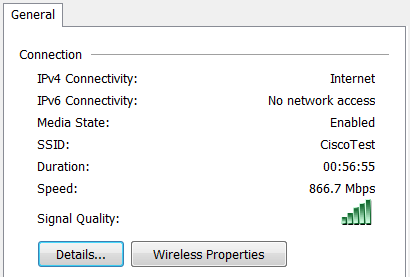
This is because multicast (and broadcast) frames are transmitted at the highest configured Mandatory data rate. In our case this is 24Mbps which is a typical configuration. Knowing this, let’s configure a more aggressive Mandatory rate of 54Mbps (all other data rates are disabled). We use the following commands:
config 802.11a rate mandatory 54
config 802.11a rate disabled 24
Interestingly the WLC requires us to disable the radio to make this change in the CLI, while using the GUI it is possible to do this on the fly.
After restarting the stream, we take another look at the wireless packet capture.
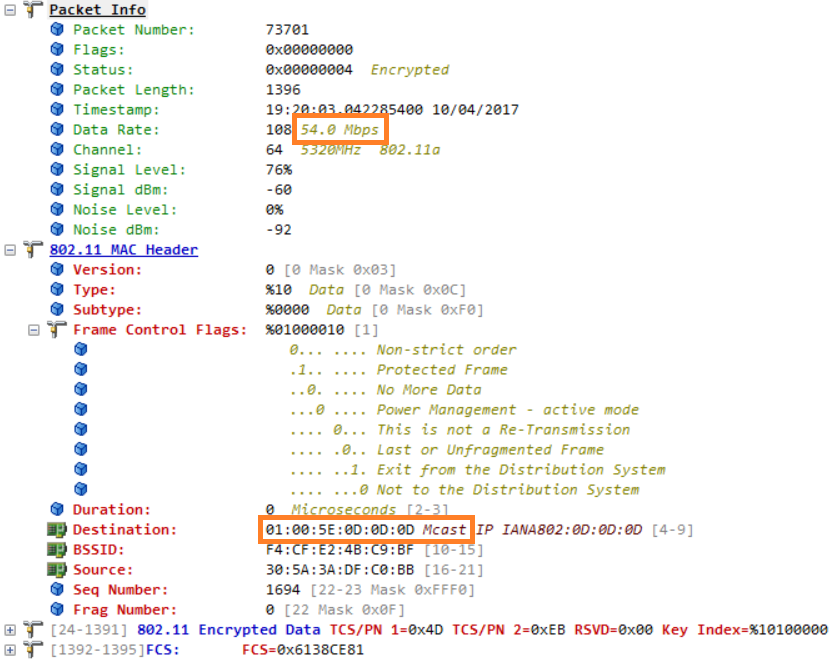
Now the multicast stream is transmitted at 54Mbps, great, except the video quality is still poor.
54Mbps is the highest possible Mandatory data rate, and the stream we are sending requires about 3Mbps, so this is not strictly a bandwidth issue. The problem here is that wireless networks treat multicast like they do broadcast, in that these transmissions are not acknowledged. Remember that 802.11 uses a system of acknowledgments to verify that each transmitted frame is received correctly. This is due to the half-duplex nature of Wi-Fi and conditions such as interference which mean that some packet loss is inherent in all Wi-Fi networks. Without a mechanism for multicast acknowledgement any lost frames are not retransmitted, and lost forever. In this case our video stream becomes unusable, because the receiving CODEC simply does not have all the required pieces to reconstruct the image. So how do we get our multicast stream to the client device with good video quality?
The answer.. we don’t send multicast!
Let’s configure the Multicast Direct feature.
Remember that some of these are radio level commands and require the radio to be disabled to take effect. Similarly for WLAN level commands, these require the WLAN to be disabled. It may be a good idea to disable both the radio and the WLAN before continuing to avoid any warning messages. Additionally, not all the commands reset the client state, so it is also a good idea to restart the video stream after any changes.
Step 1: Add the media stream
We add the start and end address for the multicast groups we want to stream. In our case the start and end address is the same, because we only have one source. We can also configure bandwidth parameters for the stream, or choose from one of the pre-defined templates. We’ll use the high-resolution template.
config media-stream add multicast-direct MyStream 239.13.13.13 239.13.13.13 template high-resolution
Step 2: Enable the Multicast Direct feature globally.
This also does what it says.
config media-stream multicast-direct enable
Step 3: Enable Multicast Direct on the radio & enable Video Redirect (yes two commands)
config 802.11a media-stream multicast-direct enable
config 802.11a media-stream video-redirect enable
At this point we should get a notification about (load based) Call Admission Control being required. CAC has QoS implications, however this is a separate discussion. As we are focusing only on the multicast portion we will not go into any QoS discussions for the time being. Let’s enable the required CAC for video and assign the maximum bandwidth, using the following commands:
config 802.11a cac video acm enable
config 802.11a cac video load-based enable
config 802.11a cac video max-bandwidth 85
config 802.11a cac video roam-bandwidth 0
Roam bandwidth is a reservation for client devices roaming into the radio cell, it prevents call drops when clients roam into a cell that is already serving the maximum quota of connections. It makes sense that the majority of video sessions do not take place while the client device is on the move, so we set this to 0%.
Step 4: Enable Multicast Direct on the SSID
The last step is to enable the feature on the required SSID, in our case the WLAN ID is 16 so the command is:
config wlan media-stream multicast-direct 16 enable
Right, after all of that we reset the video stream and try again.
Packet analysis on the receiver:

Now it looks quite different. First we see that we are no longer stuck at the Mandatory rate, the frames are being transmitted at 802.11ac rates. This has the added benefit of reducing air-time which gives an immediate speed increase for all other devices in the radio cell. Remember that transmitting at lower rates takes longer so all other devices need to wait for the low speed transmission to complete.
The important point however, is that we are technically no longer sending multicast. The destination MAC address has changed from a multicast address (see previous capture) to a unicast destination address, the MAC address of our client. The BSSID is the MAC address of the AP and the source MAC is the virtual interface of the WLC. Basically, this is now a layer 2 unicast transmission of a multicast payload, and gets the benefit of 802.11 acknowledgements and retransmissions.
The result is prefect quality for our video stream.
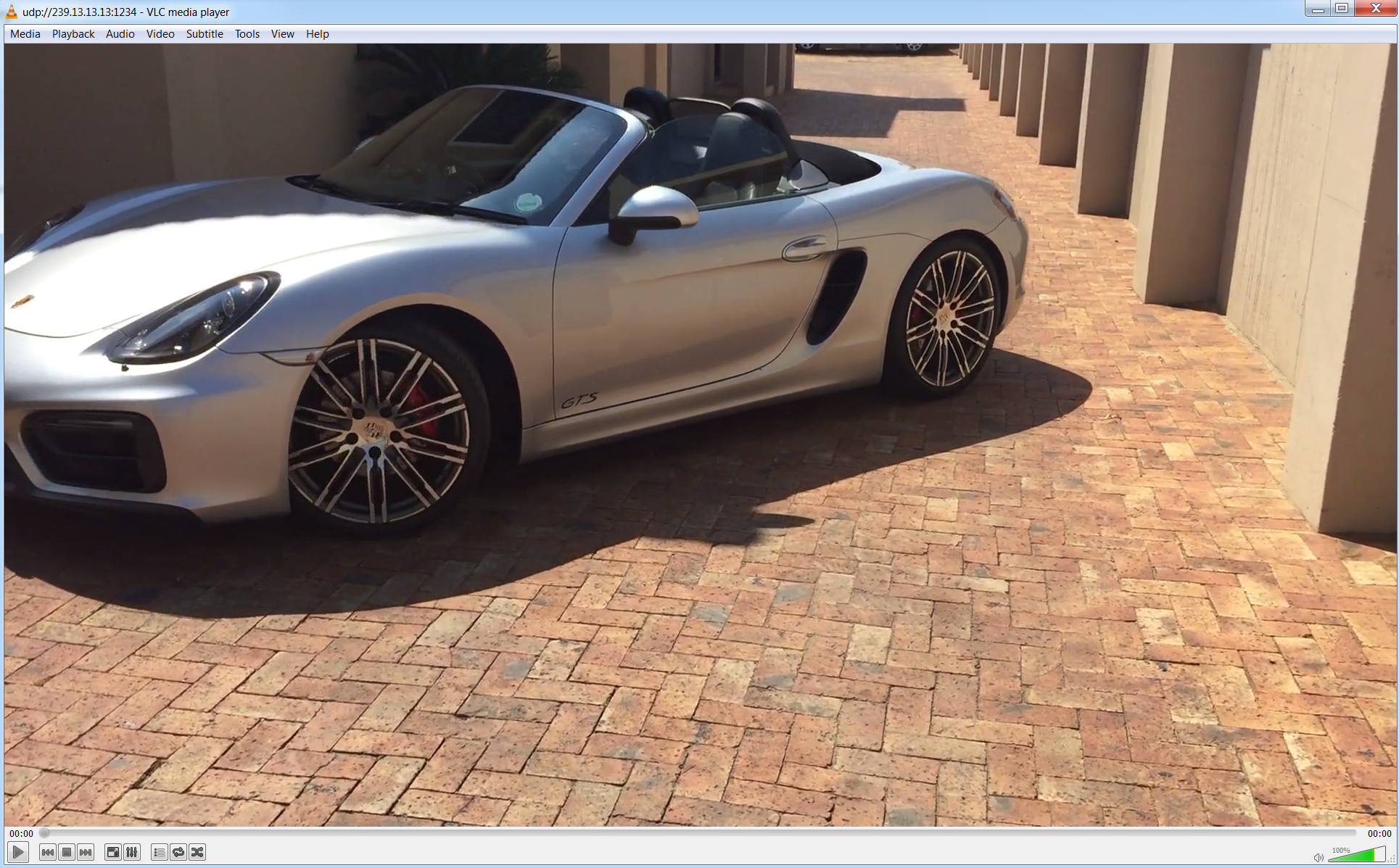
The lab used WLC code version 8.2.161.0.